
How to Change Your Telegram Two-Step Verification Password and Sign Out Old Devices
Change your two-step verification password
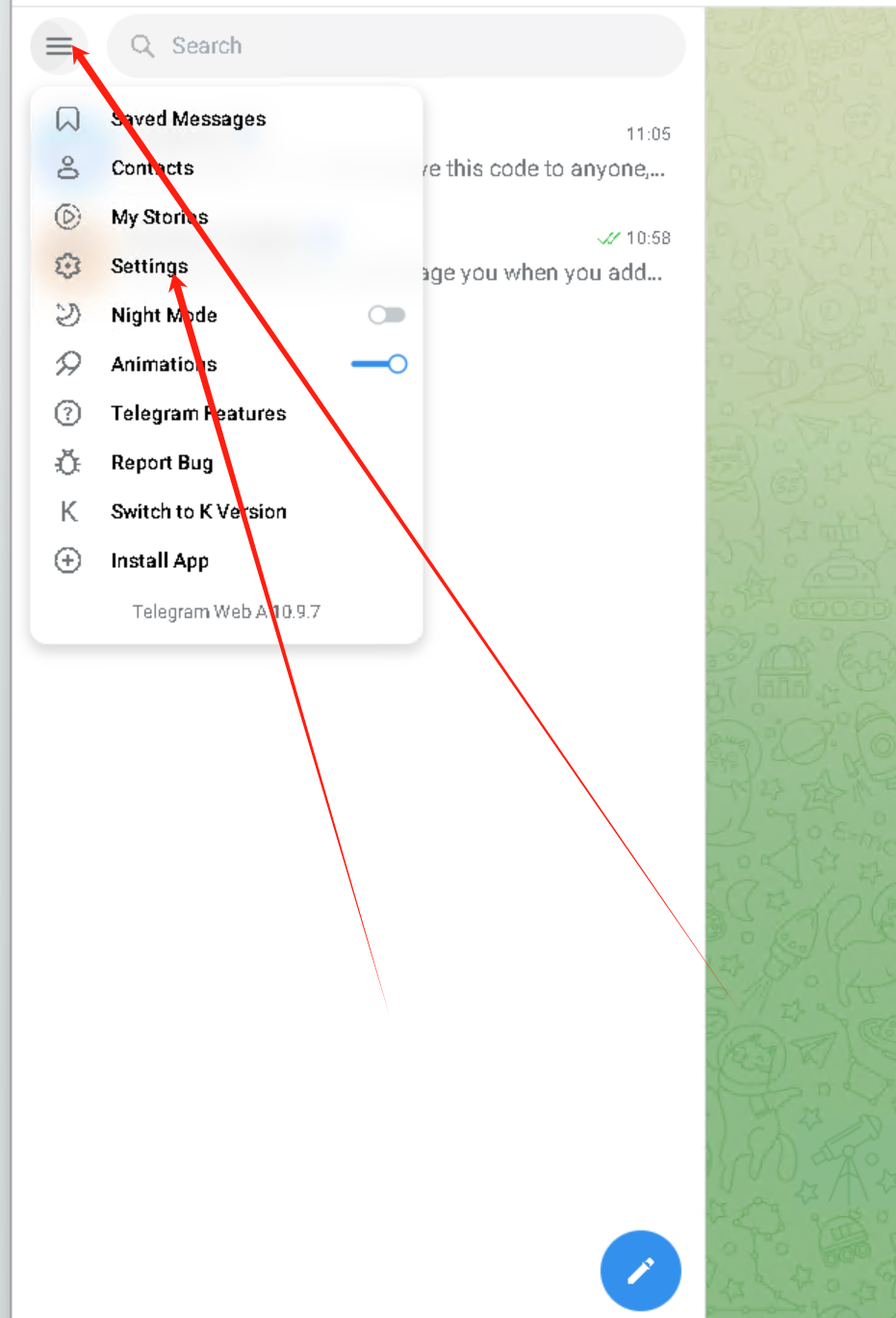
On a device where you are already signed in, open the Telegram menu and select Settings. The screenshots show Telegram Web.
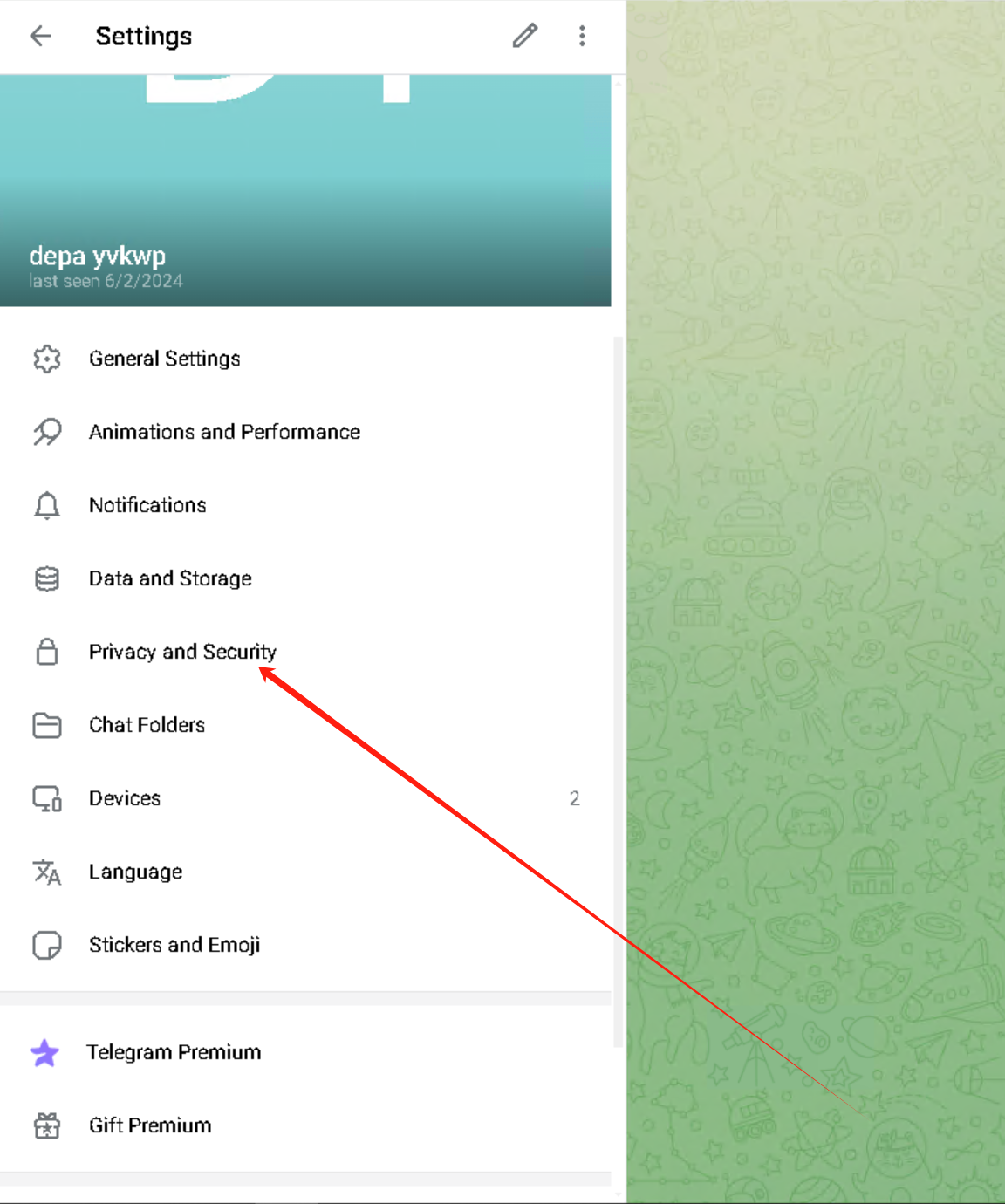
In Settings, select Privacy and Security.
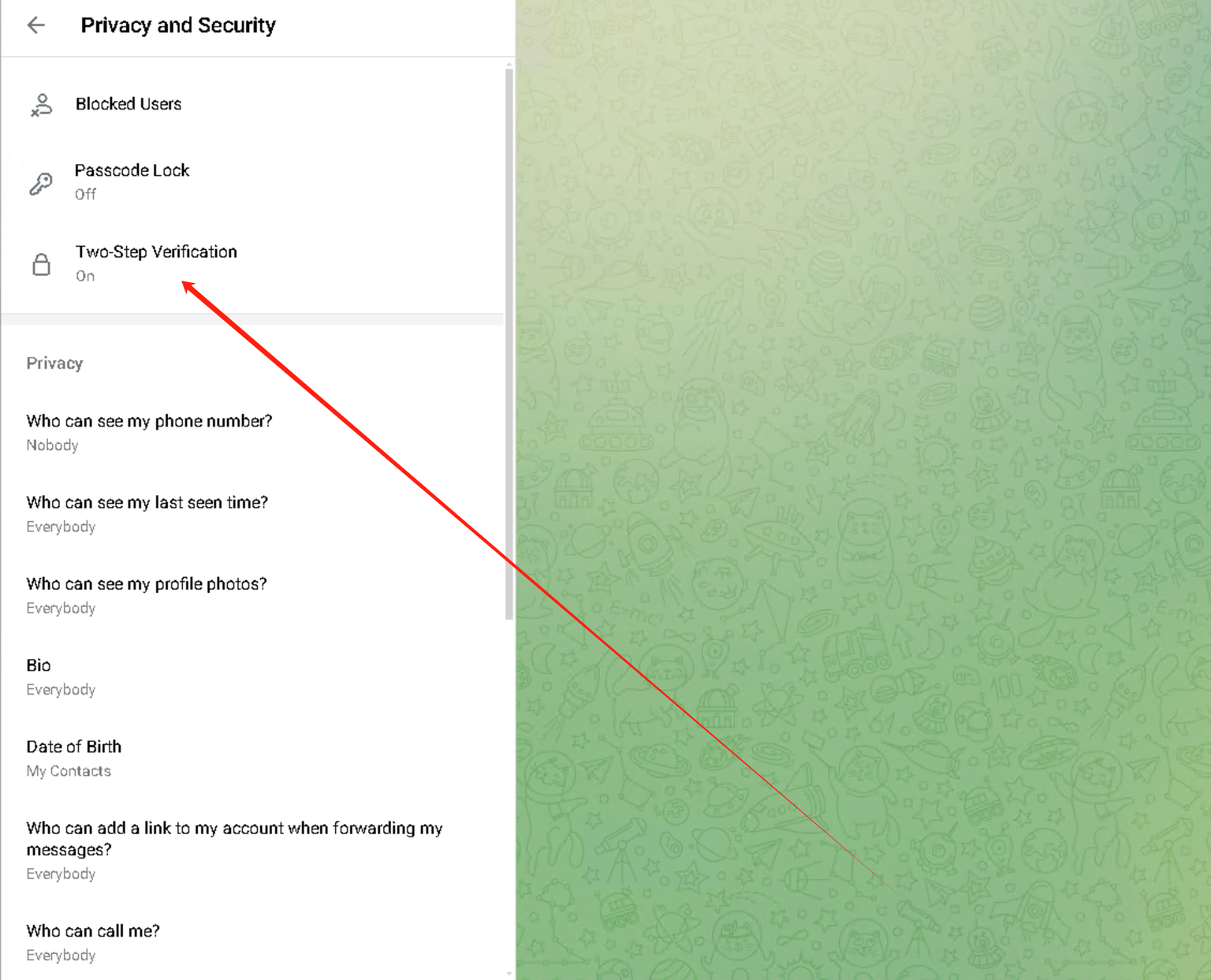
Select Two-Step Verification. Enter your current password when prompted, choose Change Password, then enter and confirm the new password. If Telegram offers to set a password, you are enabling the feature for the first time.
Sign out old devices
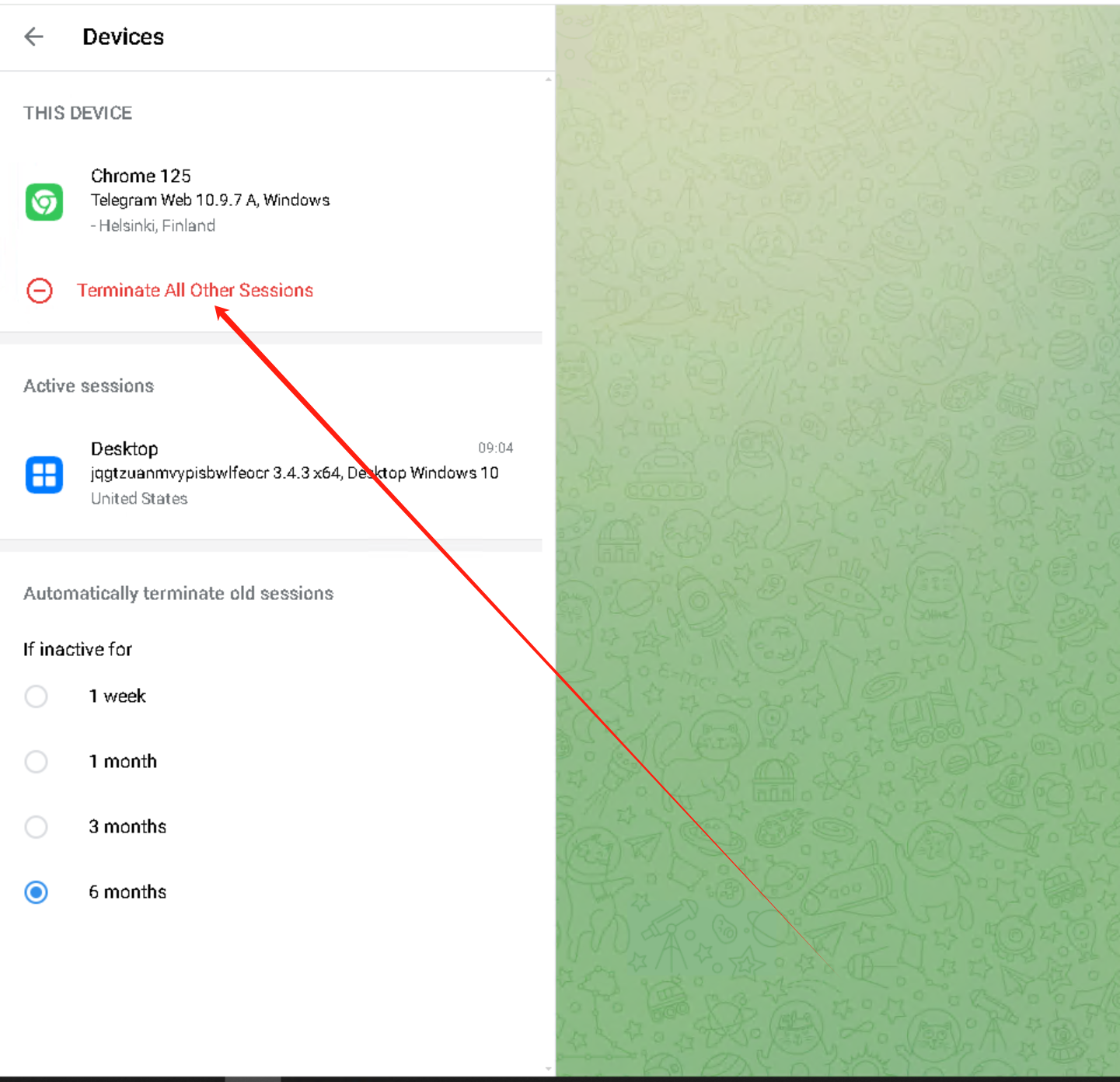
Return to Settings and select Devices. You can see your current session and the other devices signed in to your account.
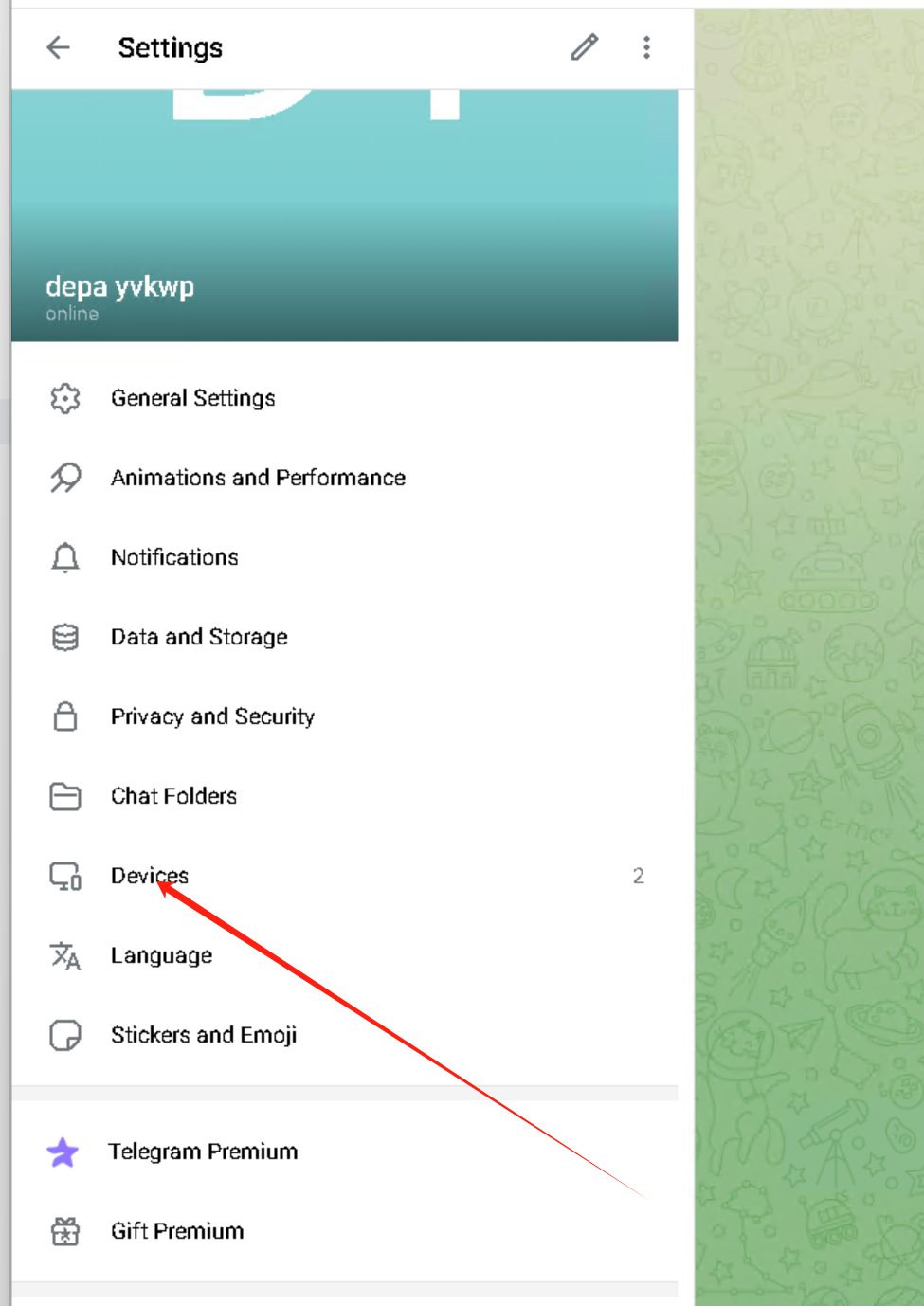
Select an old device to end just that session. To sign out every device except the one you are using, select Terminate All Other Sessions and confirm. Any client using a terminated session will need to sign in again. Check the list afterward to confirm the intended sessions are gone.
 Telegram bot
 Scan for bot