
How to Log In to Telegram on Mobile, Desktop or Web
1. Enter your phone number
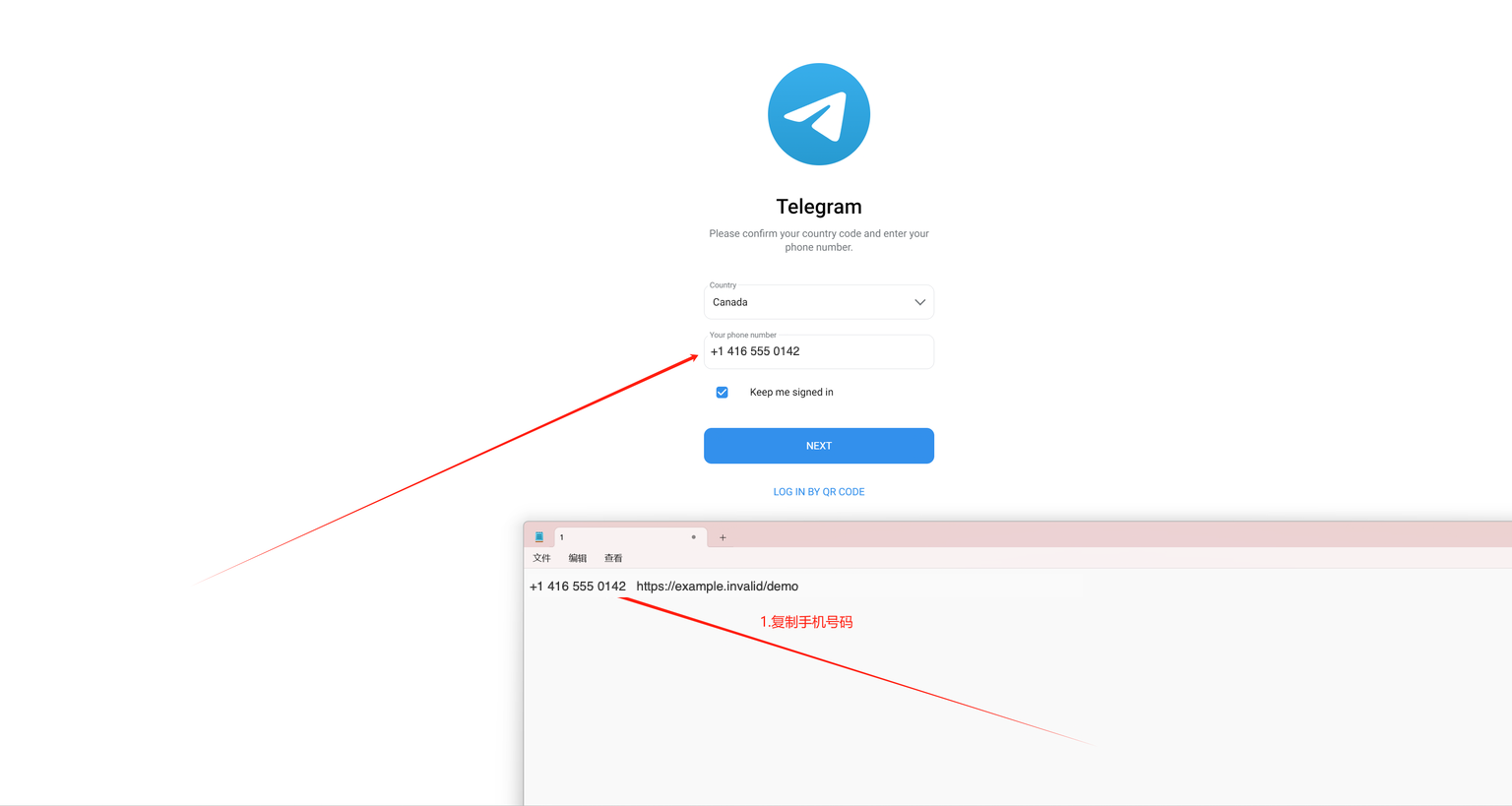
Open Telegram Web or the Telegram app. If the web page shows a QR code, choose Log in by phone number. Select your country, enter the mobile number linked to your account, then select Next. The numbers and codes in the screenshots are examples.
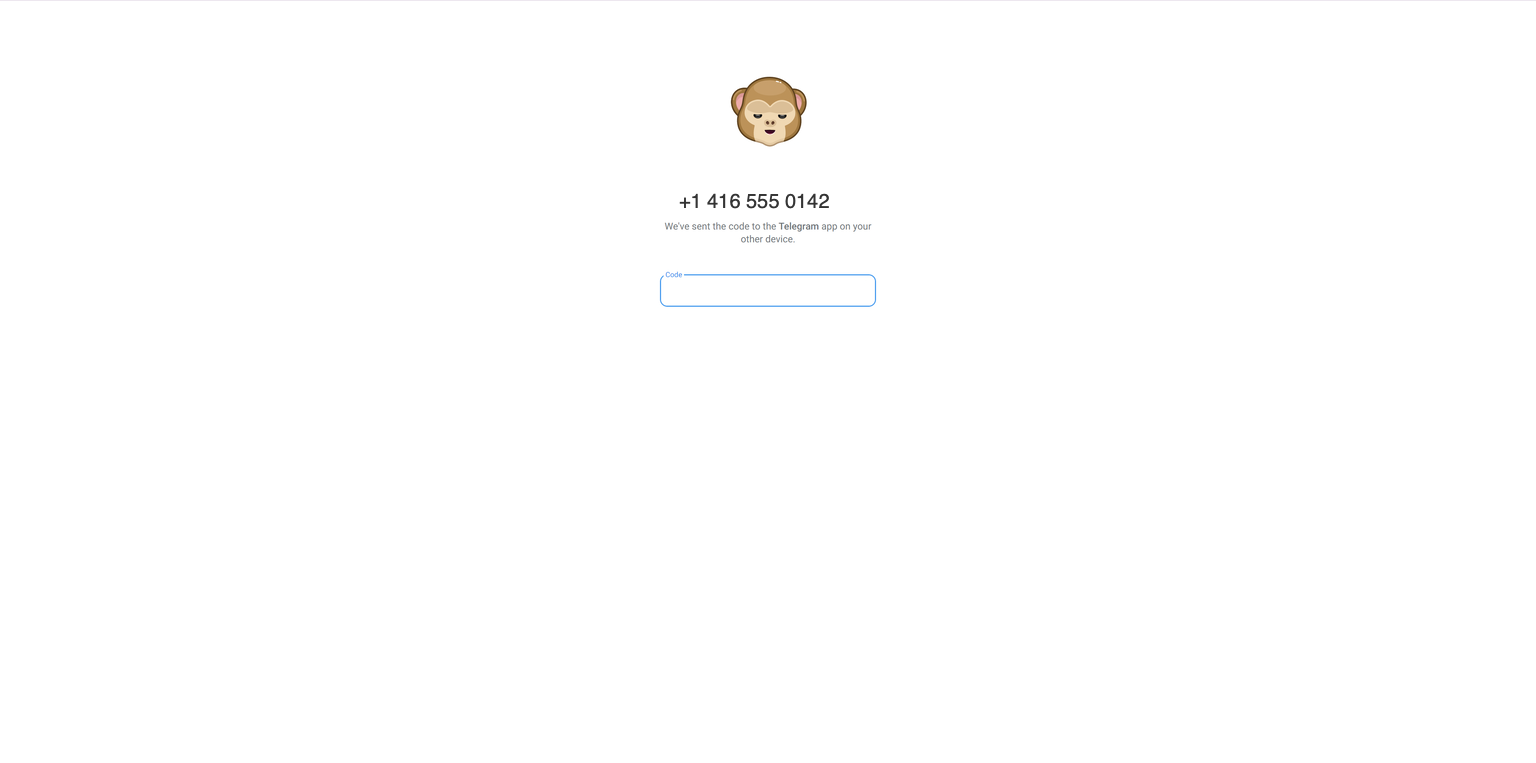
Check the number at the top of the next screen. The message below it tells you where Telegram sent the code. In this example, it went to the Telegram app on another signed-in device.
2. Find your login code
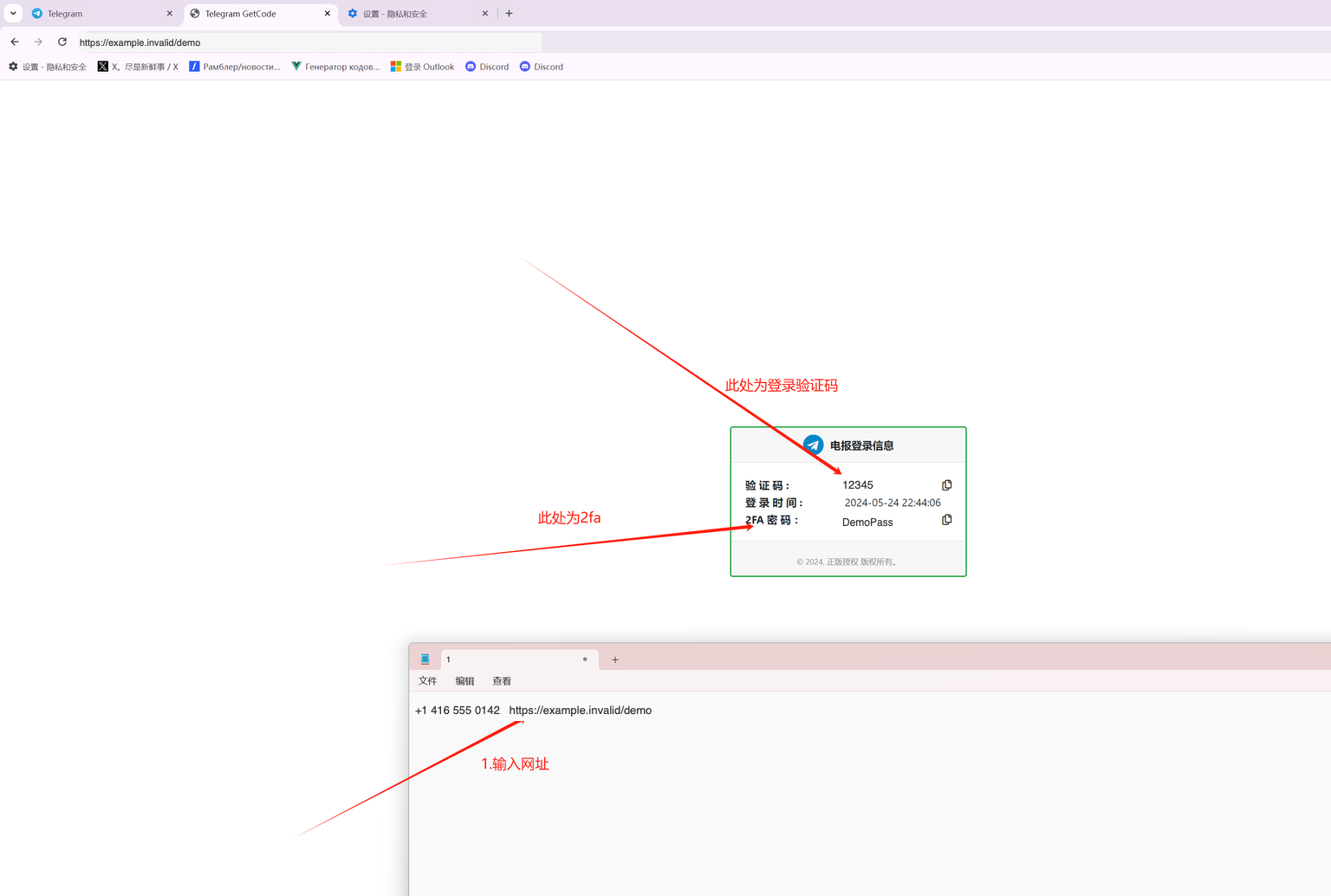
Retrieve the latest code from the destination shown on your own login screen. If Telegram sent it to another signed-in device, open the verified Telegram service chat there. If the screen specifies SMS or email, check that inbox instead.
3. Enter the code and your two-step verification password
Return to the sign-in screen and enter the code in the Code field.
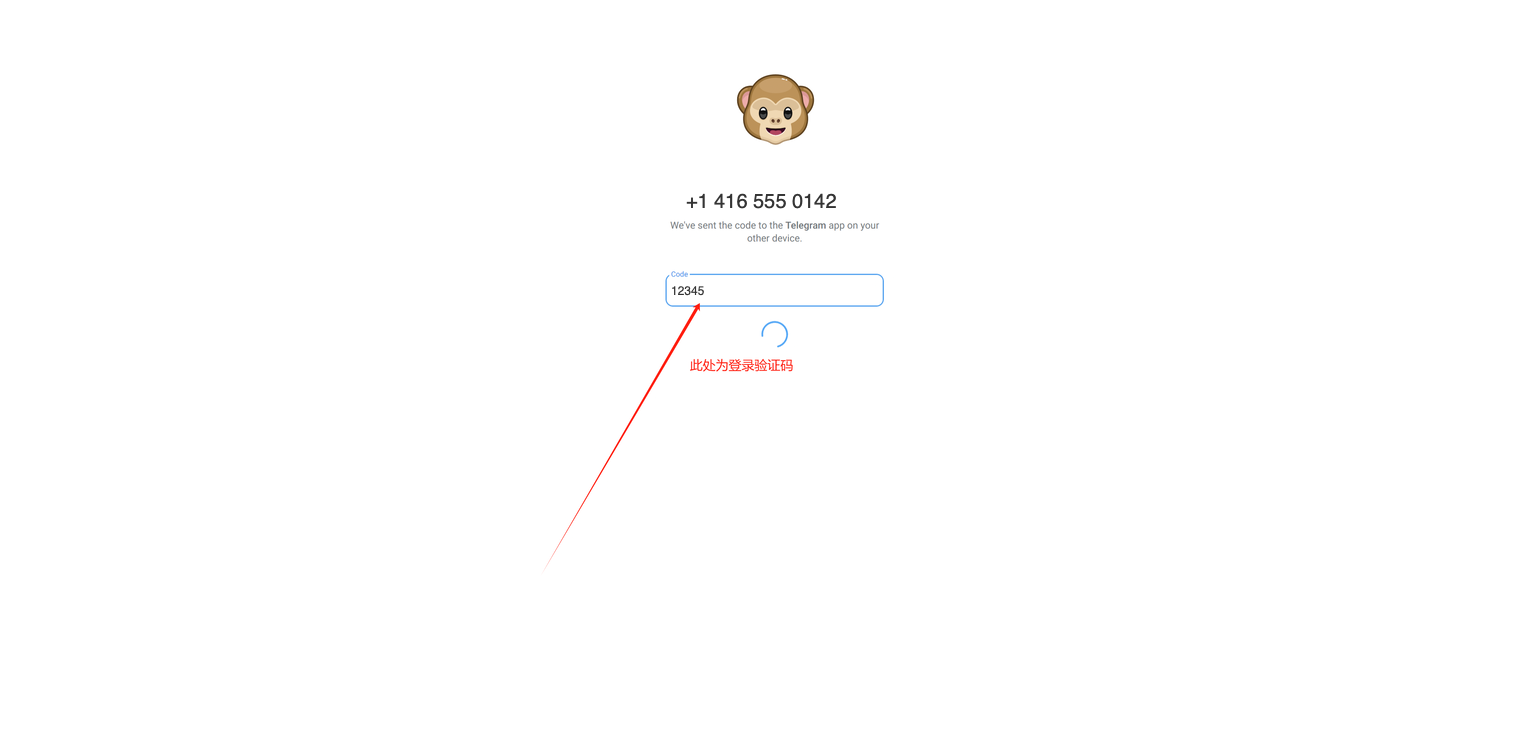
If Enter Password appears, your account has two-step verification enabled. Enter the password you set for the account and select Next.
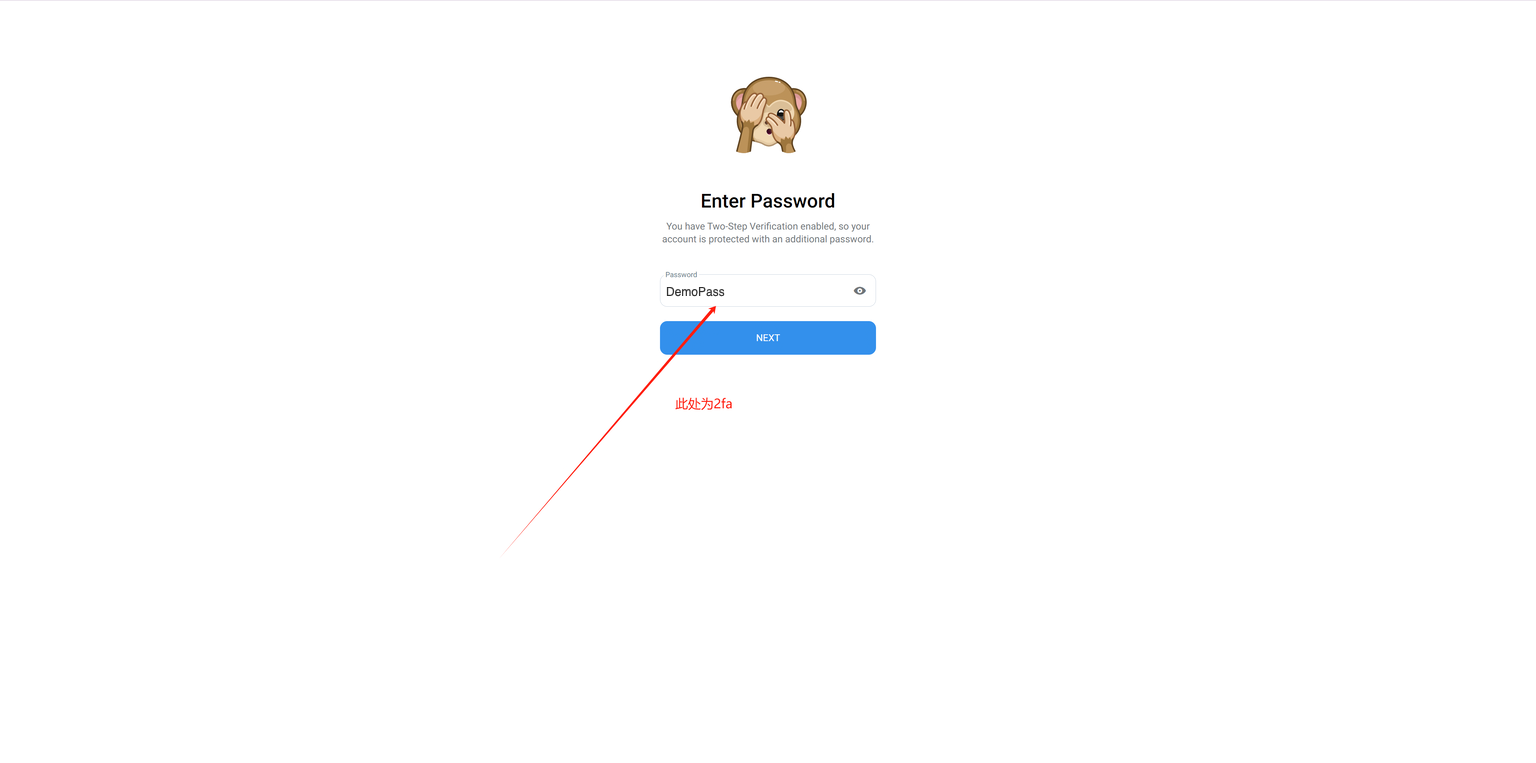
4. Confirm you are signed in
When the chat list opens, you are signed in. To check which account is active, open Settings and look at the phone number.

 Telegram bot
 Scan for bot